Operations with scenes
You can work with scenes within a dashboard. To open a scene:
-
Go to the Dashboards tab and open the dashboard.
-
To switch scenes, use the arrows
 and
and  . If there is only one scene in the dashboard, it opens automatically when you open the dashboard.
To open the required scene directly, in the top menu of the dashboard, click the scene name and select a scene from the list. Alternatively, click
 icon, select Scenes, and then select a scene from the list: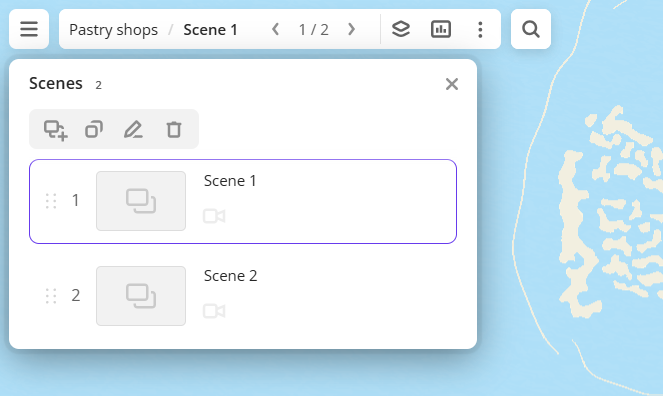
Adding a layer to the scene
- To open the list of layers, in the top menu of the dashboard, click
 icon.
icon. - Click Create layer.
For more details, see the Creating a layer instruction.
Adding a scene to the dashboard
To add a scene to the dashboard, in the Scenes dialog, click  icon.
icon.
For more details, see the Creating a scene instruction.
Moving a scene
To move a scene, in the Scenes dialog, drag the scene to the required position in the list.
Configuring camera position
For each scene, you can secure the camera position (tilt and bearing) and the map scale to change the map viewport. When you open or switch scenes, the camera and map are positioned according to the settings.
-
To secure the camera and map position, click
 icon next to the scene.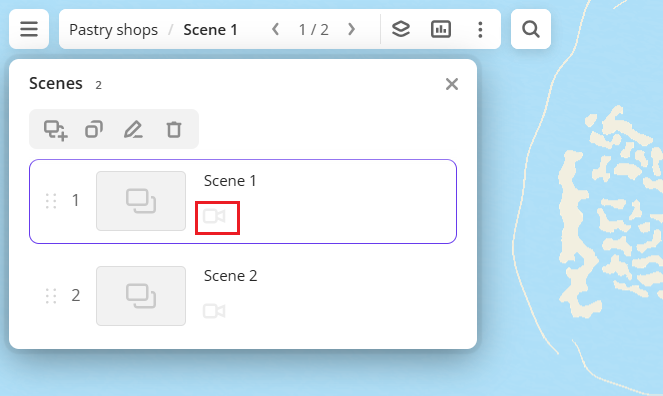
-
To unpin the camera and map position, click
icon again.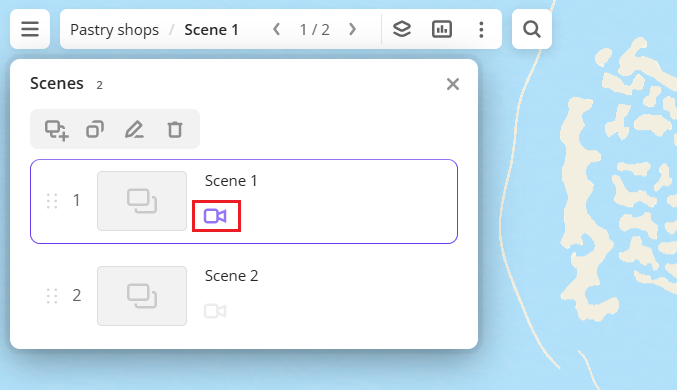
Renaming a scene
-
Rename the scene in one of the following ways. In the Scenes dialog:
- Double-click the scene.
- Click
 icon.
icon.
-
Enter a new scene name and press Enter.
Duplicating a scene
To duplicate a scene, in the Scenes dialog, click  icon.
icon.
Opening a scene in full-screen mode
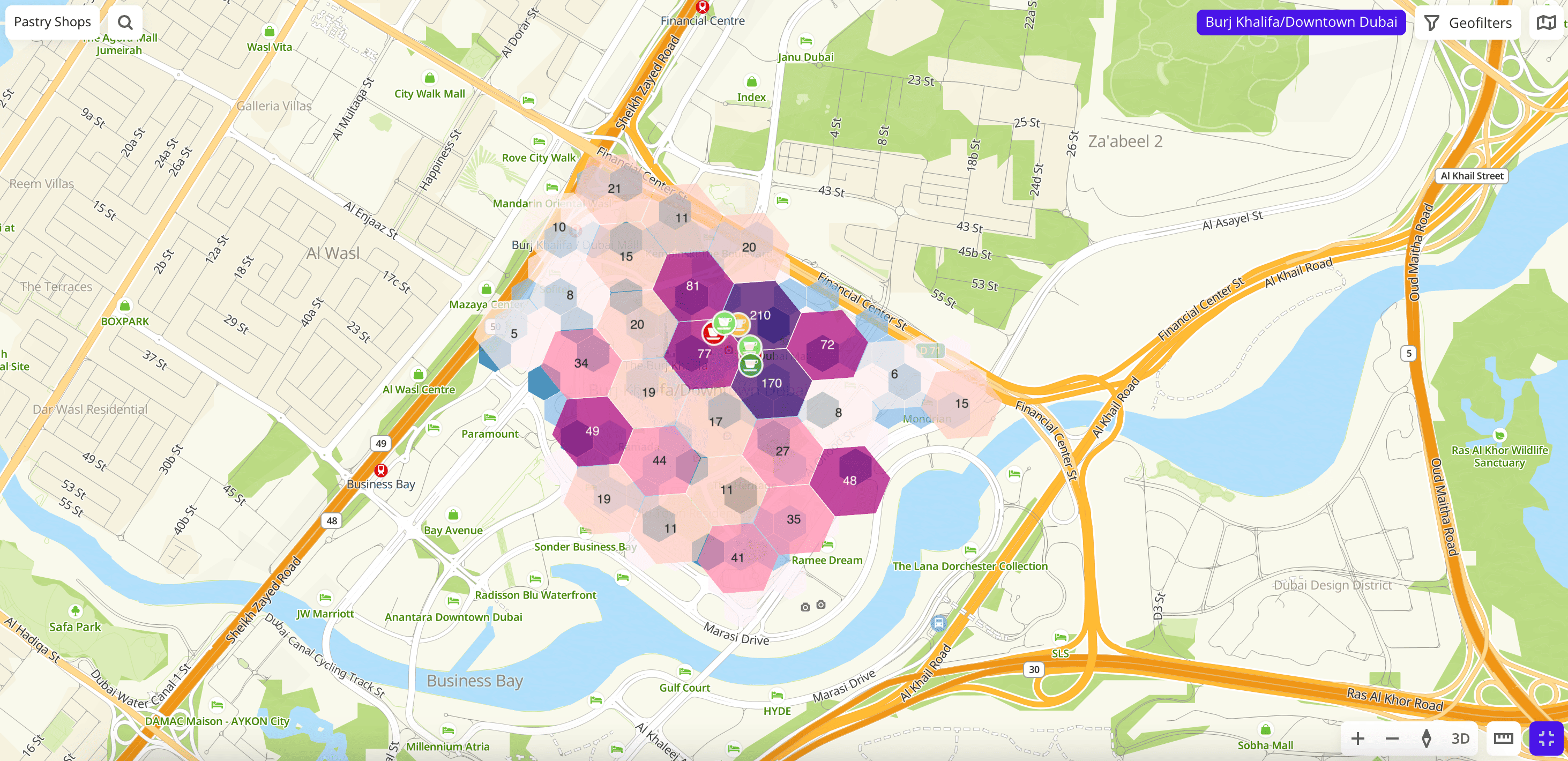
To automatically hide widgets and the list of layers on the dashboard scene to view the map, you can open the scene in full-screen mode. Click  icon in the bottom-right corner of the map.
Deleting a scene
When you delete a scene, all its layers and widgets are deleted.
- In the Scenes dialog, click
 icon.
icon. - To confirm deletion, click Delete.
What's next?
- Getting started.
- Get to know how to work with Data and Data visualization.
- Learn more about Layers, Dashboards, and Widgets.
- Learn about ready-made Analytics scenarios.