Creating a layer
Layer is a saved data sample with configured visualization on the map.
You can create:
- Layers with data from built-in or uploaded datasets. For such layers, you can modify the data sample.
- Layers with points. You can create points by clicking them on the map or specifying coordinates, edit, and delete points. A layer with points can be used only within the dashboard in which it is created.
For all layers, you can configure data visualization in different ways, even if the layers are created from the same data sample. You can work with layers within dashboard scenes. Besides layers, you can add widgets to scenes: with charts based on layer data, with text, and with indicators.
If you use the demo tariff plan, you can create no more than three layers within one dashboard scene.
Creating a layer with data
- When working with a dashboard
- When working with data
-
Go to the Dashboards tab and open the dashboard.
-
Open a scene using the arrows
 and
and  . If there is only one scene in the dashboard, it opens automatically.
 -
In the top menu of the dashboard, click
 icon.
icon. -
Click
 icon.
icon.
-
Select the built-in or the uploaded dataset.
-
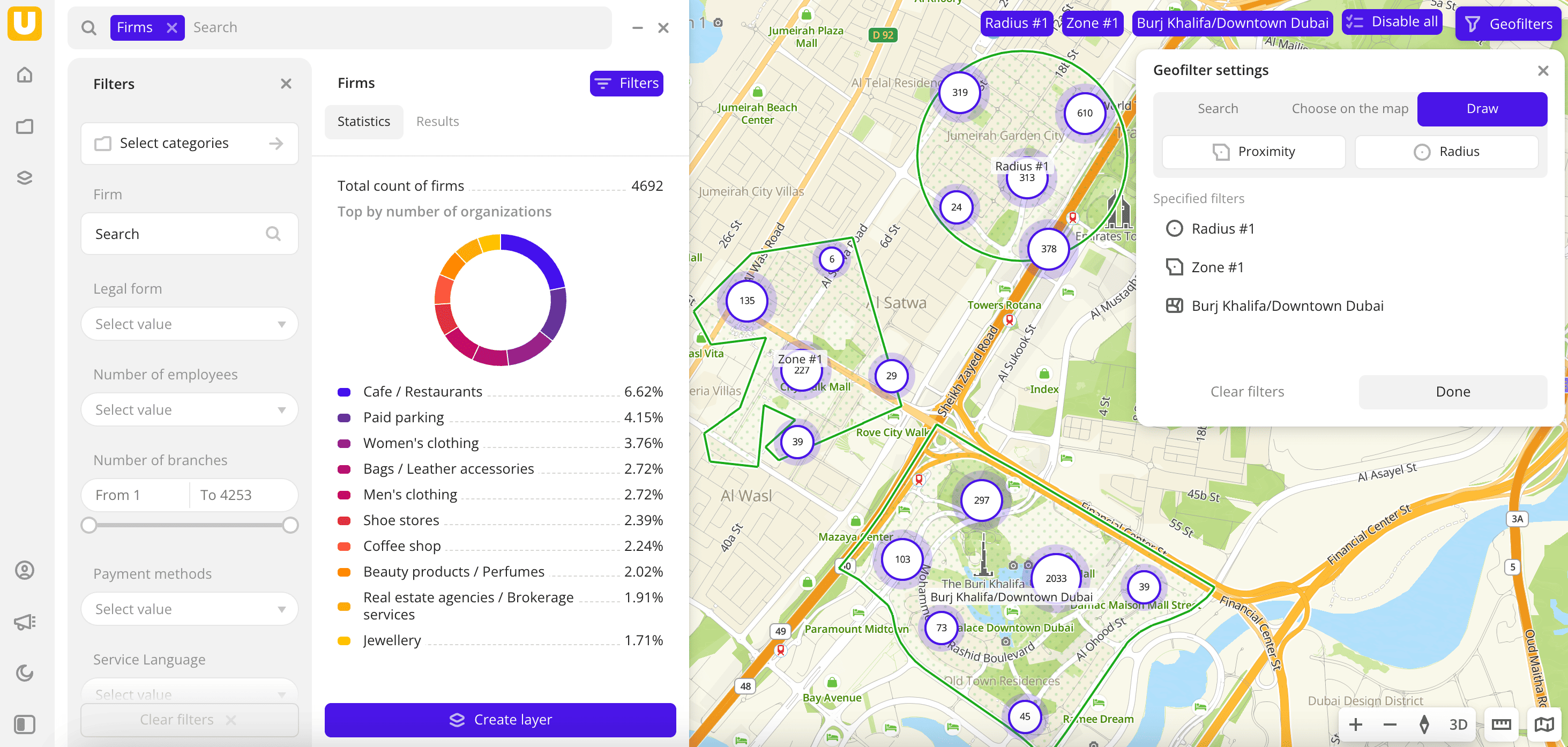
In the Geofilter settings dialog, select up to 50 territories for which the data sample is created. You can use standard and custom territories and also build polygons, proximity zones, and circles on the map. For more information, see the Geofilters section. After you select the territories, click Done.
-
If you selected the built-in dataset Pedestrian traffic or uploaded data with line or polygon geometries, you can select the data display method at the top of the Filters tab:
- Points: display as centroid points (the centers of the object geometries).
- Geometries: display as real data geometries (lines or polygons).
-
On the Filters tab, set the remaining filters if necessary.
-
Click Create layer.
A layer is automatically added to the selected dashboard scene.
-
Go to the Main or Data tab.
-
Select the built-in or the uploaded dataset.
-
In the Geofilter settings dialog, select up to 50 territories for which the data sample is created. You can use standard and custom territories and also build polygons, proximity zones, and circles on the map. For more information, see the Geofilters section. After you select the territories, click Done.
-
If you selected the built-in dataset Pedestrian traffic or uploaded data with line or polygon geometries, you can select the data display method at the top of the Filters tab:
- Points: display as centroid points (the centers of the object geometries).
- Geometries: display as real data geometries (lines or polygons).
-
On the Filters tab, set the remaining filters if necessary.
-
Click Create layer.
-
Enter a layer name.
-
If there is at least one dashboard created, in the dialog, select the dashboard and scene to add the layer to. You can create a new dashboard or a new scene:
- To create a dashboard, click New dashboard and enter a name.
- To create a scene in an existing dashboard, in the Select scene field, click
 icon and enter a name.
Click Create.
If there are no created dashboards, a dashboard with one scene will be created, and the layer with data will be automatically added to it.
Creating a layer with points
You can create points on the dashboard without uploading a dataset. This is useful if you need to quickly add multiple objects to the map to complement daata analysis.
For example, you created a layer with potential business locations with data on population, demand, etc. You can add to it a layer with points: locations where you plan to establish branches of your organization. You can then evaluate the effectiveness of each location by customizing the point visualization, calculating aggregate value or specific indicators.
A layer with points is available only within the dashboard in which it was created. You cannot use it in other dashboards, but you can copy it to other scenes of this dashboard. Also, you can export points.
Creating points
-
Go to the Dashboards tab and open the dashboard.
-
Open a scene using the arrows
and . If there is only one scene in the dashboard, it opens automatically. -
In the top menu of the dashboard, click
icon. -
Click
 icon.
icon.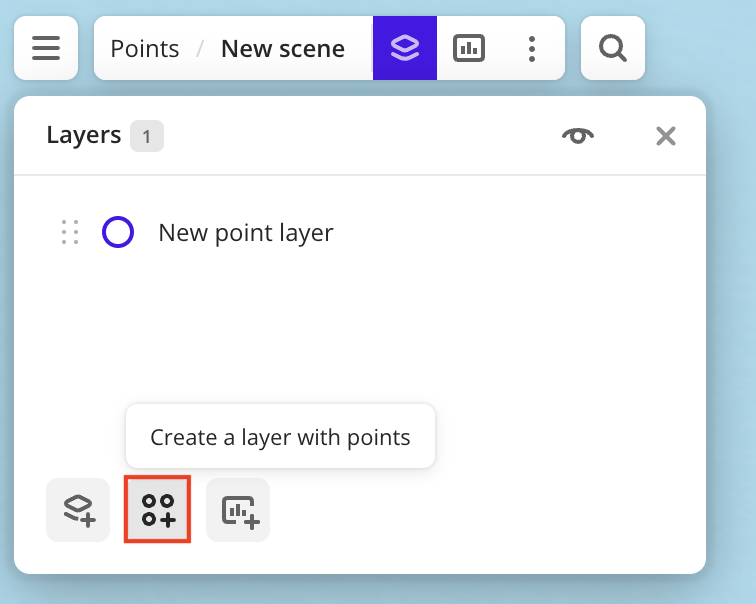
-
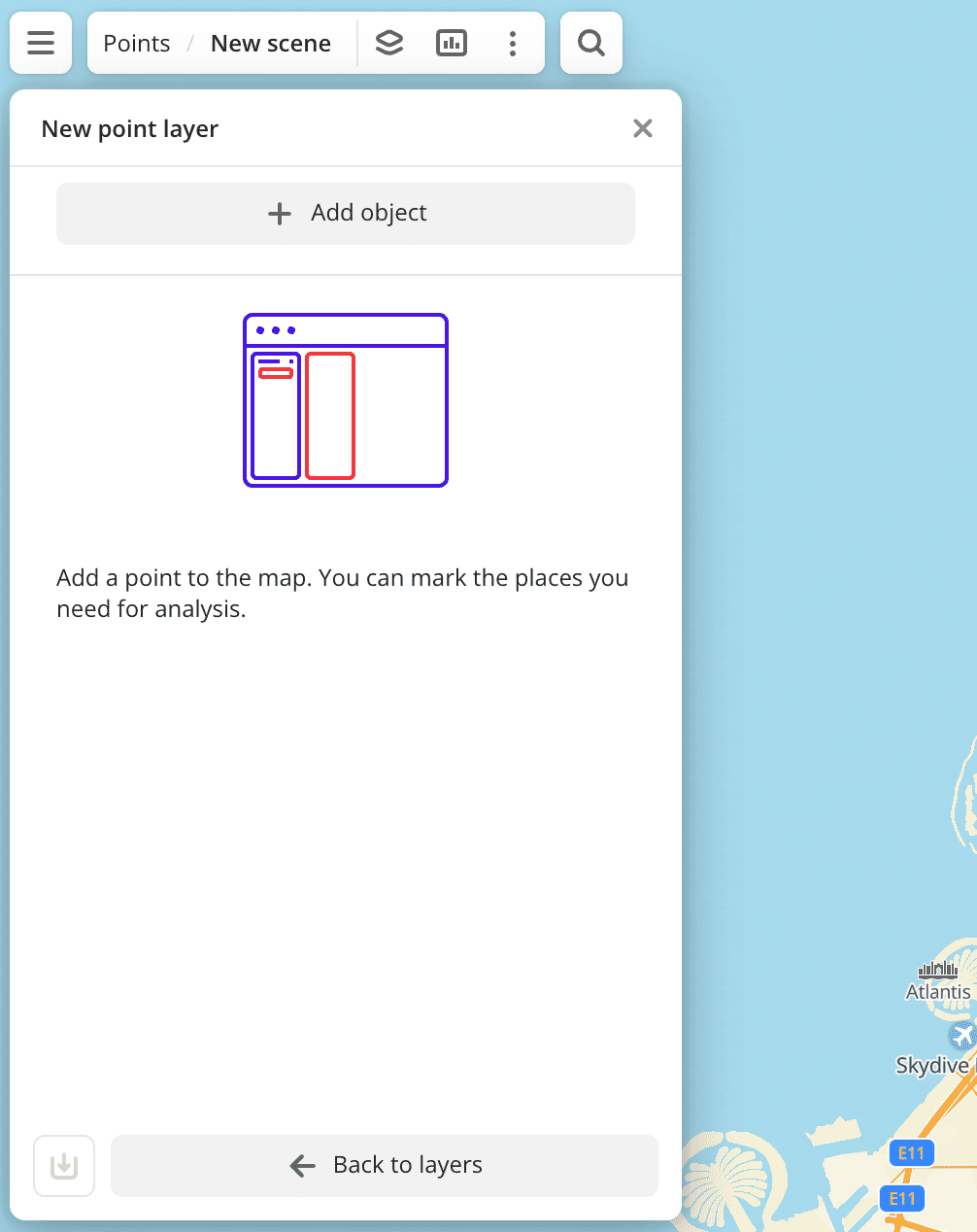
Click Add object.
-
Specify mandatory point parameters:
-
Name: point name.
-
Location: enter point coordinates manually, click a point on the map, or drag
 icon to the required place on the map.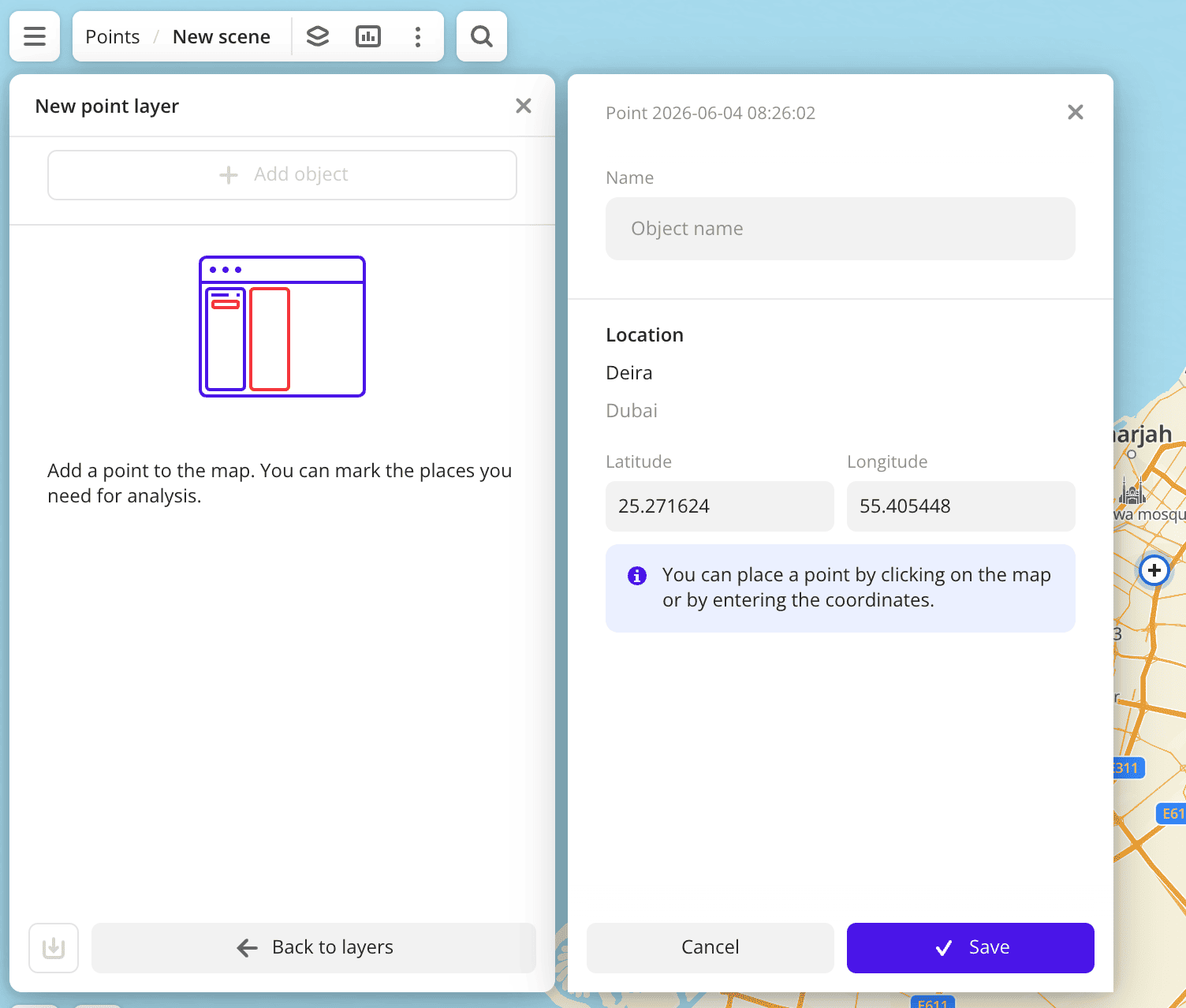
-
-
Click Save and then Back to layers.
Editing points
-
Go to the Dashboards tab and open the dashboard.
-
Open a scene using the arrows
and . If there is only one scene in the dashboard, it opens automatically. -
In the top menu of the dashboard, click
icon and select the layer with points. -
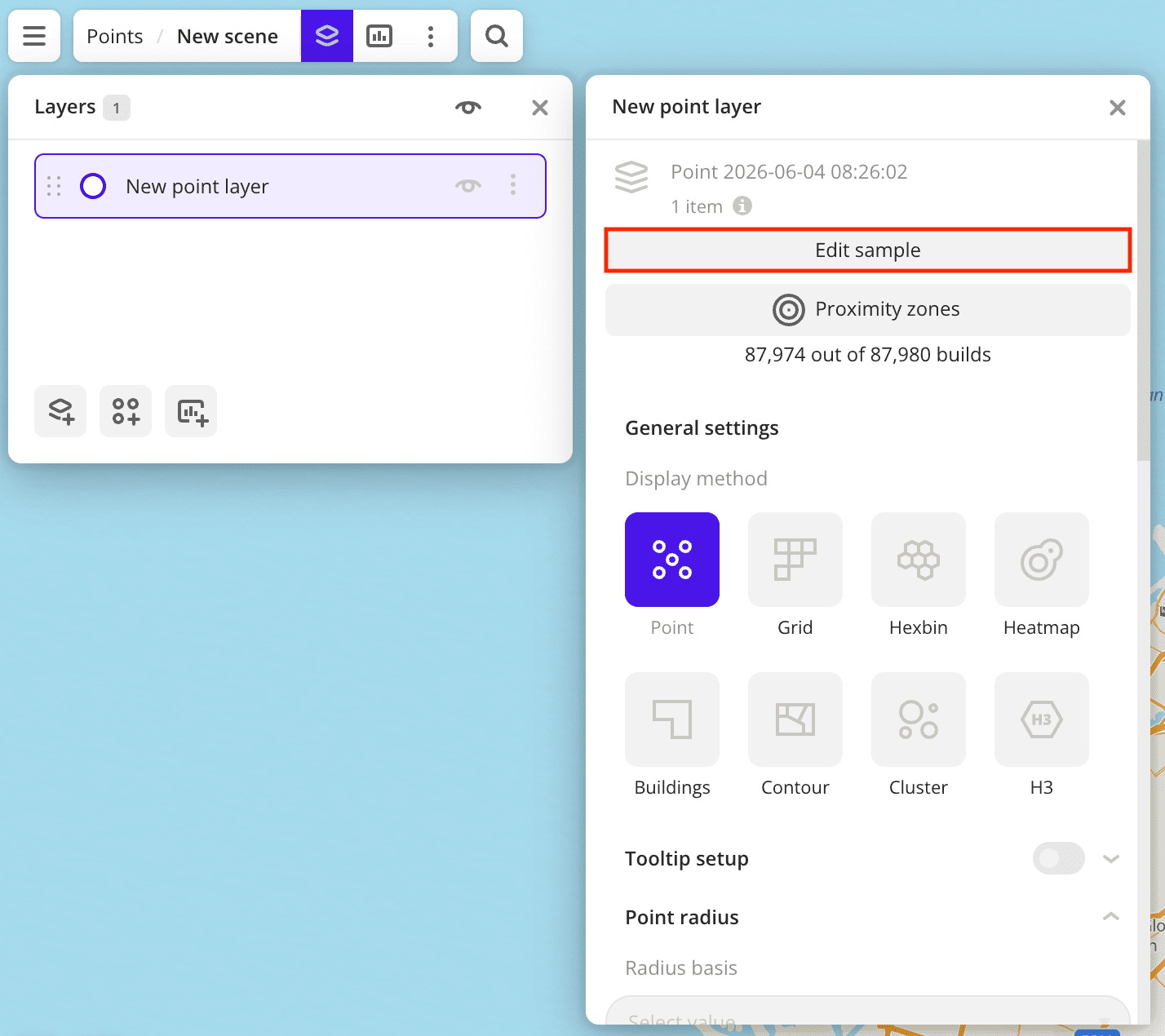
Click Edit dataset.
-
Select a point.
-
Click Upgrade.
-
Apply changes. You can edit:
- Name: point name.
- Location: point coordinates. Enter point coordinates manually, click a point on the map, or drag icon to the required place on the map.
-
Click Save and then Back to layers.
Deleting points
-
Go to the Dashboards tab and open the dashboard.
-
Open a scene using the arrows
and . If there is only one scene in the dashboard, it opens automatically. -
In the top menu of the dashboard, click
icon and select the layer with points. -
Click Edit dataset.
-
Select a point.
-
Click Delete and confirm the deletion.
-
Click Back to layers.
Exporting points
If you are the dashboard owner or you have been granted access to edit the dashboard, you can export points in the .csv format.
-
Go to the Dashboards tab and open the dashboard.
-
Open a scene using the arrows
and . If there is only one scene in the dashboard, it opens automatically. -
In the top menu of the dashboard, click
icon and select the layer with points. -
Click Edit dataset.
-
Click
 icon.
icon. -
Select the checkboxes for the attributes you want to include in the final export.
-
Check the result in preview mode. Only the first 10 rows are shown in the table.
-
Click Export.
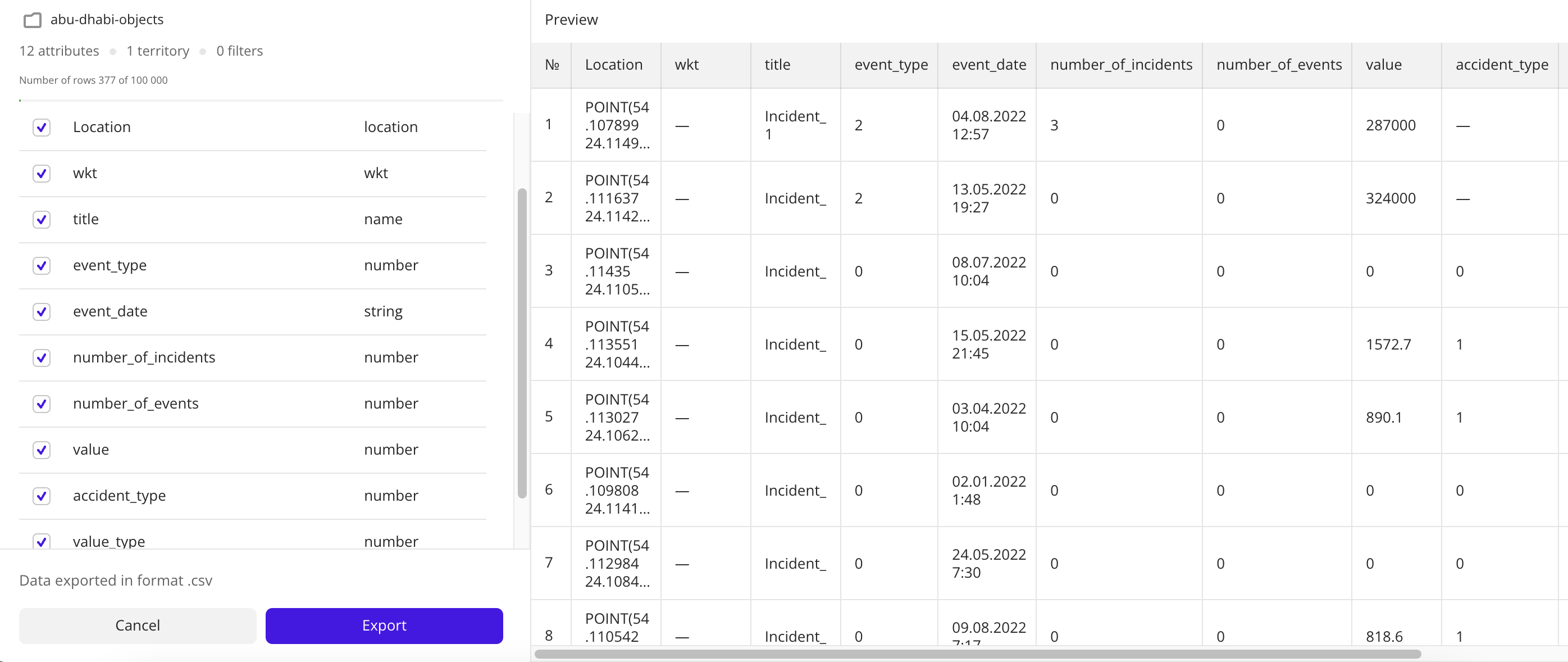
You can upload the exported dataset to Urbi Pro and use it further in other dashboards.
What's next?
- See available Operations with layers.
- Getting started.
- Get to know how to work with Data and Data visualization.
- Learn more about Dashboards, Scenes, and Widgets.
- Learn about ready-made Analytics scenarios.