Tasks
The documentation provides a description of the interface in Russian.
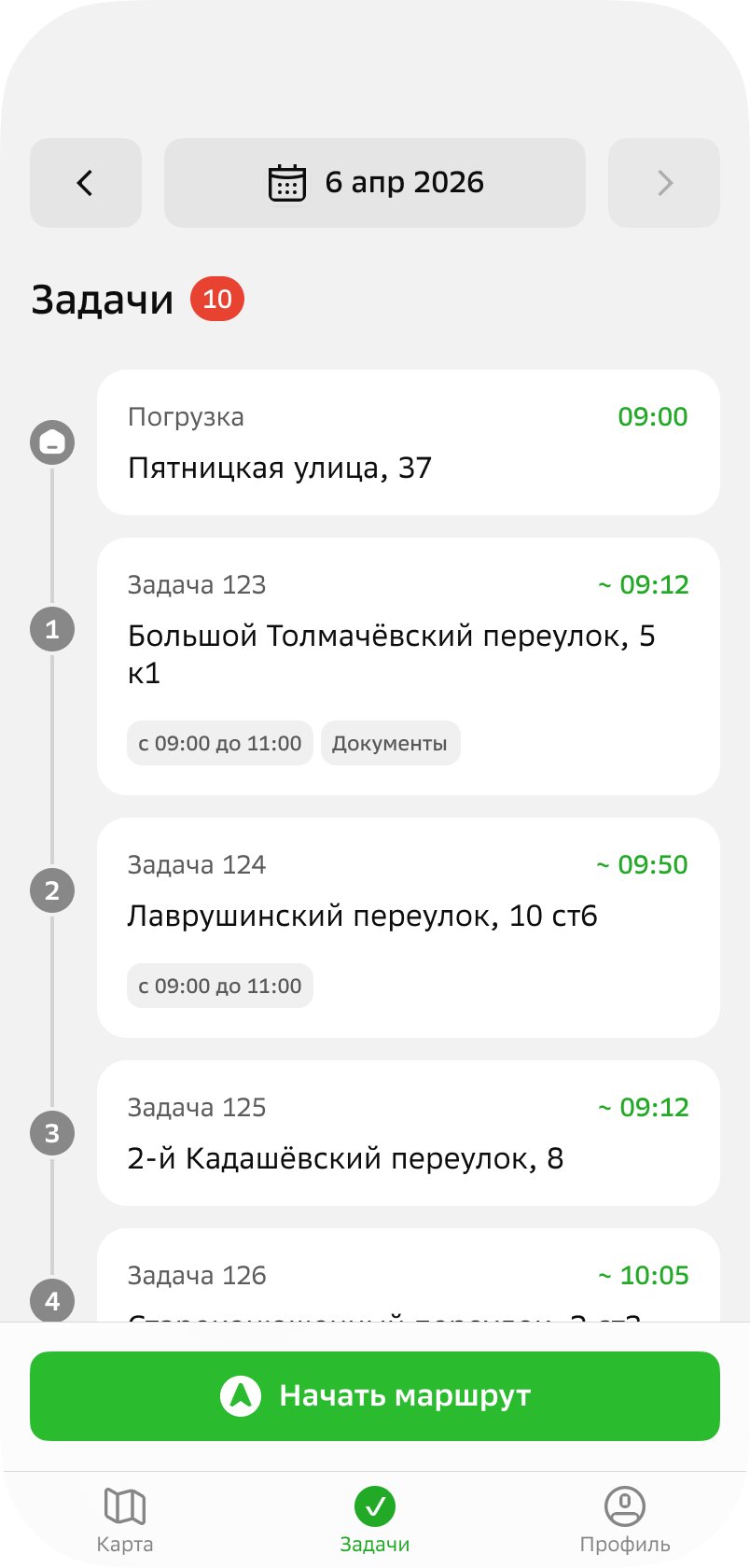
The mobile application Tasks tab displays a list of tasks for an agent within a route plan.
Tasks are displayed in the order you need to perform them. The task cards display the data specified by the administrator when creating the task (for example, completion time, required skills, etc.) and the estimated task completion time. For more details, see the Administrator guide.
Getting started
To start working on a task:
-
Go to the Tasks tab and open the current date.
-
Tap Start route.
-
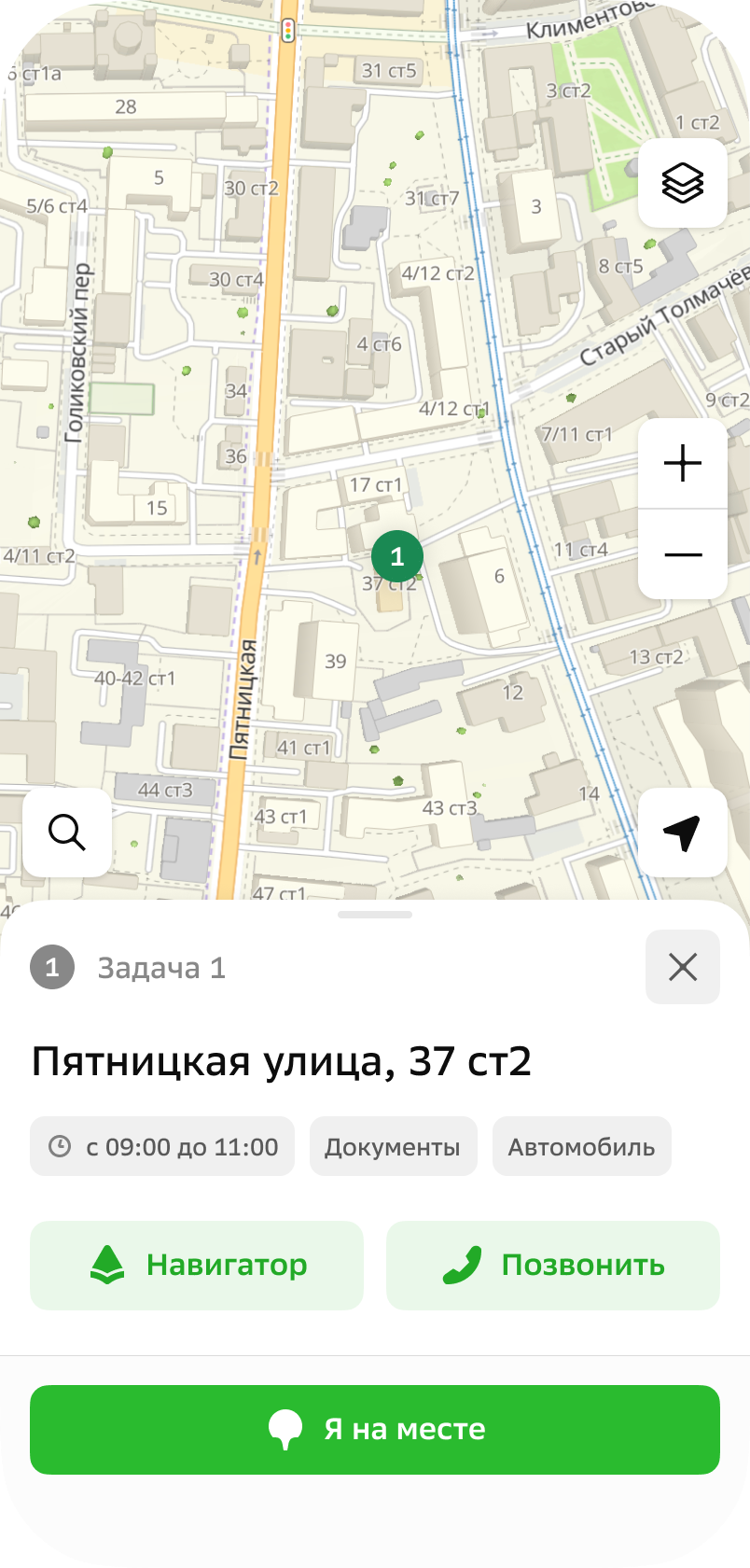
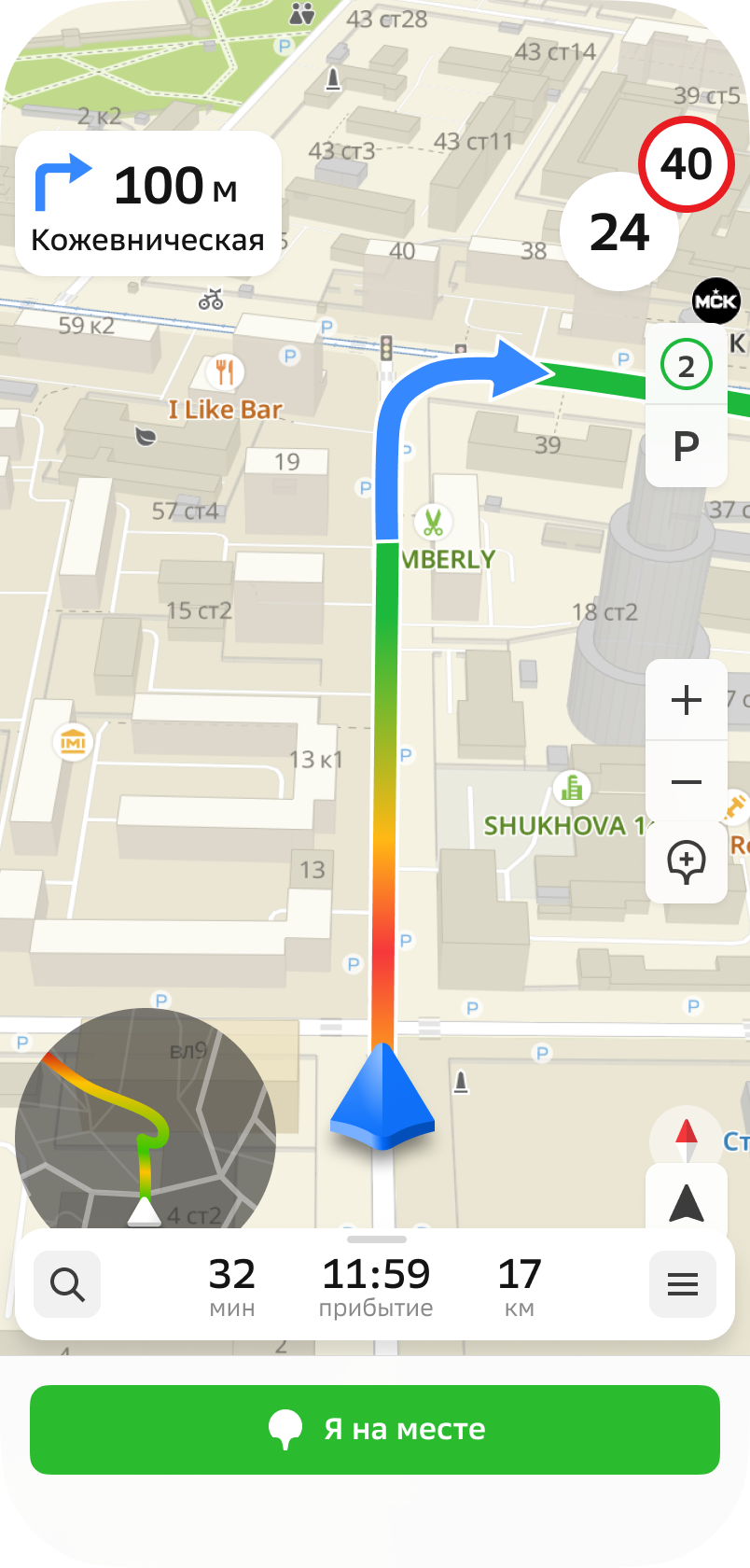
To enable navigation mode for your first point to visit, tap Navigator. Turning on the navigator is optional, but it will help you navigate along the optimal route.
When you reach the visitor's point, tap I'm here.
-
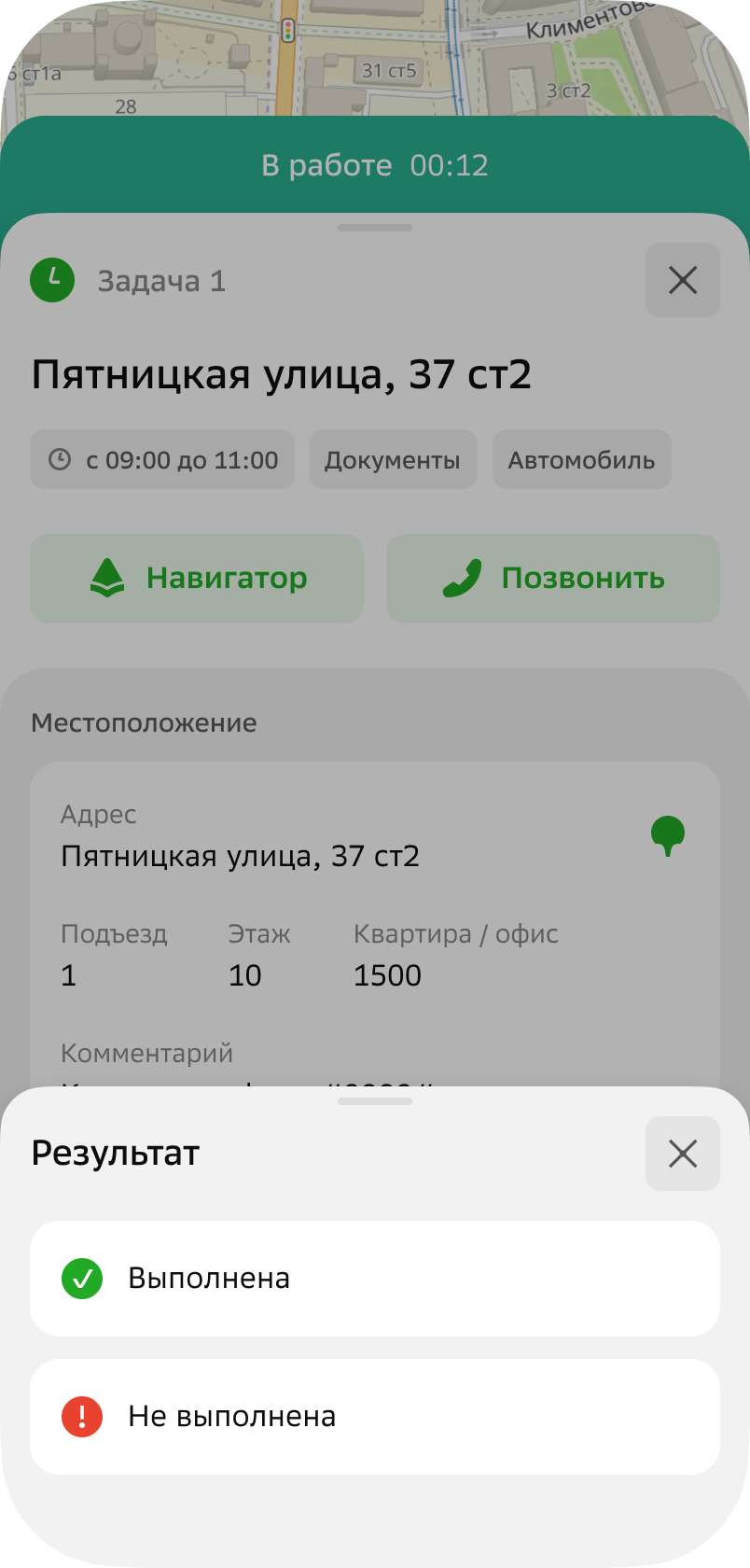
To complete work on a task, open its card and tap Finish task.
-
Select the task result status: Completed or Not completed.
-
To proceed to the next task in the route plan, tap To the next point.
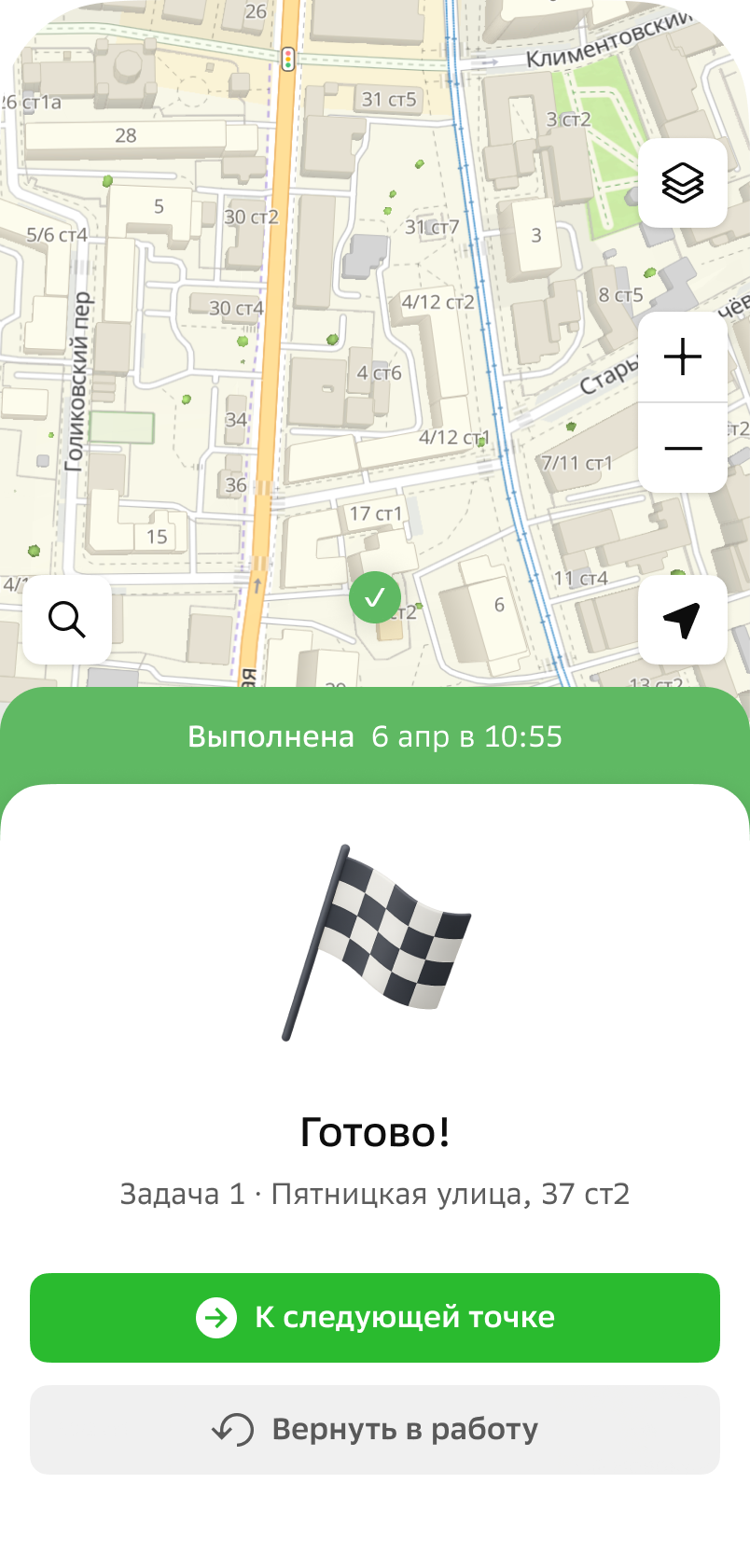
Completed tasks are displayed in the Completed tab. Remaining active tasks are displayed in the Active tab.