Purchasing a sample
The documentation provides a description with examples of the interface in Russian.
Creating an order
To purchase a sample, create and pay for an order:
-
Open the Data.2GIS page.
-
Click New order.
-
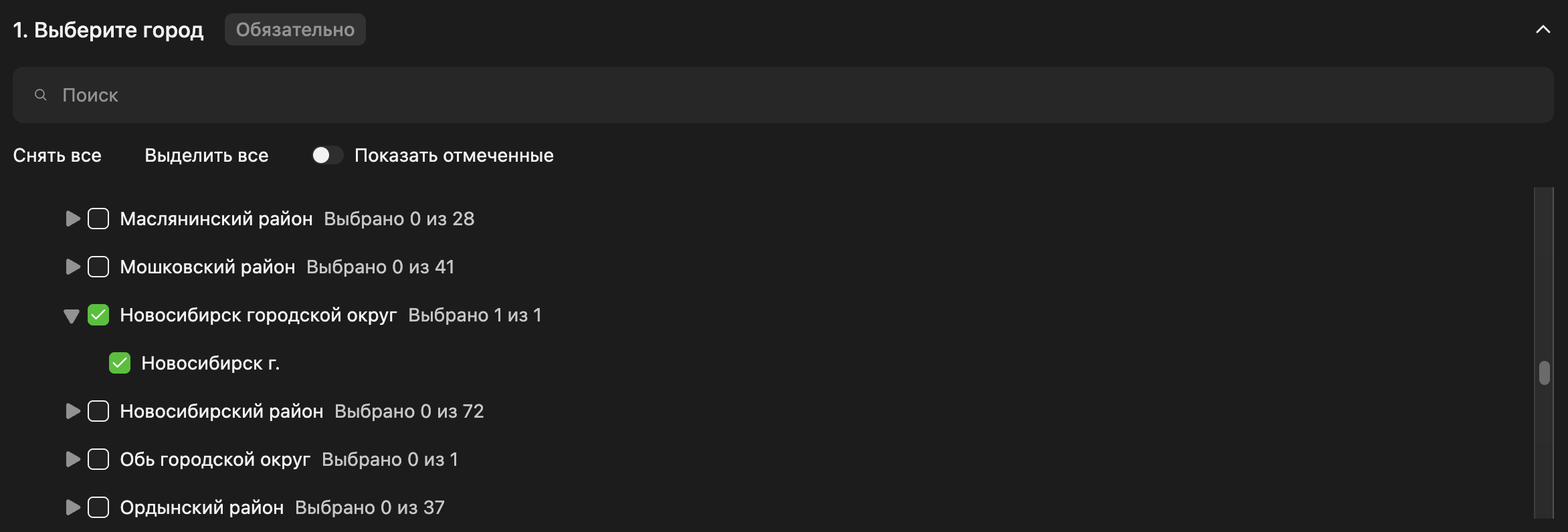
Select the territories for which the data sample is created.
Data on organizations in Russia and Kazakhstan is available. You can select countries, regions, districts, settlements, and others.
Federal cities are at the same level as regions, for example, Moscow Oblast and the federal city of Moscow.
-
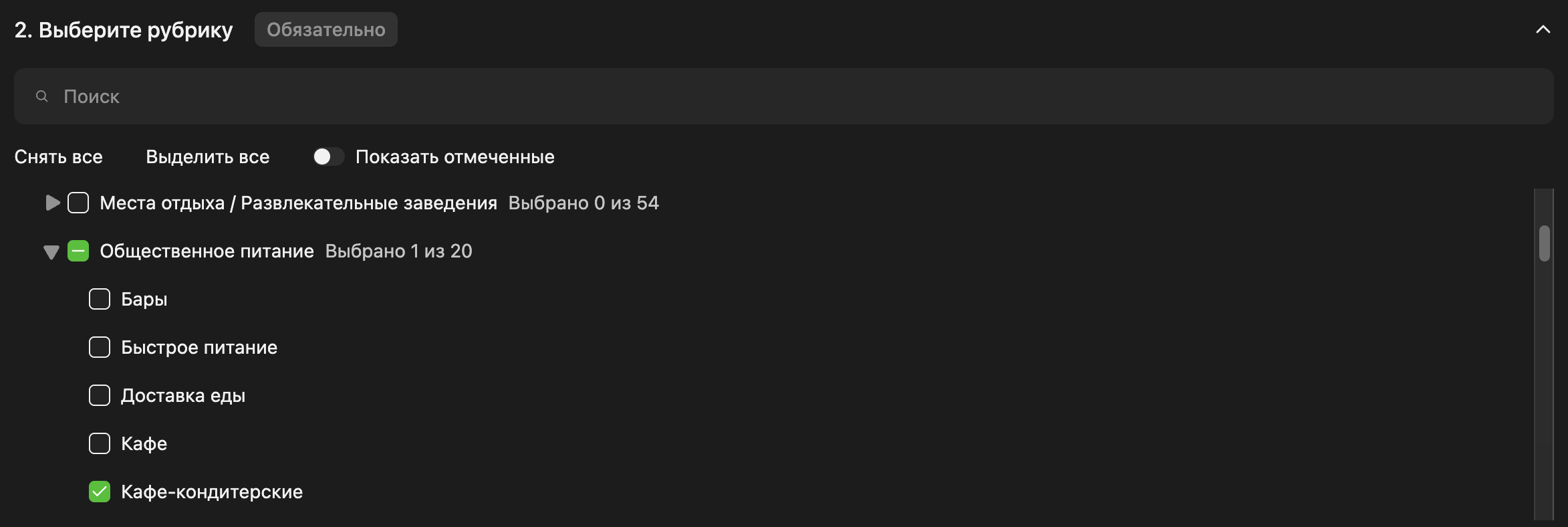
Select organization categories from the Urbi directory.
When you select a category, all its subcategories are included. If necessary, you can select only some of them. More than 1,500 organization subcategories are available. For example, the
Food servicecategory from theLeisure / Entertainment / Food servicesphere contains thePastry shopssubcategory.If an organization has multiple subcategories (e.g., Food court and Coffee shop), it is included in the sample even if only one subcategory is selected (for example, Coffee shop).
To add organizations without a specified category to the sample, select the Without category checkbox.
-
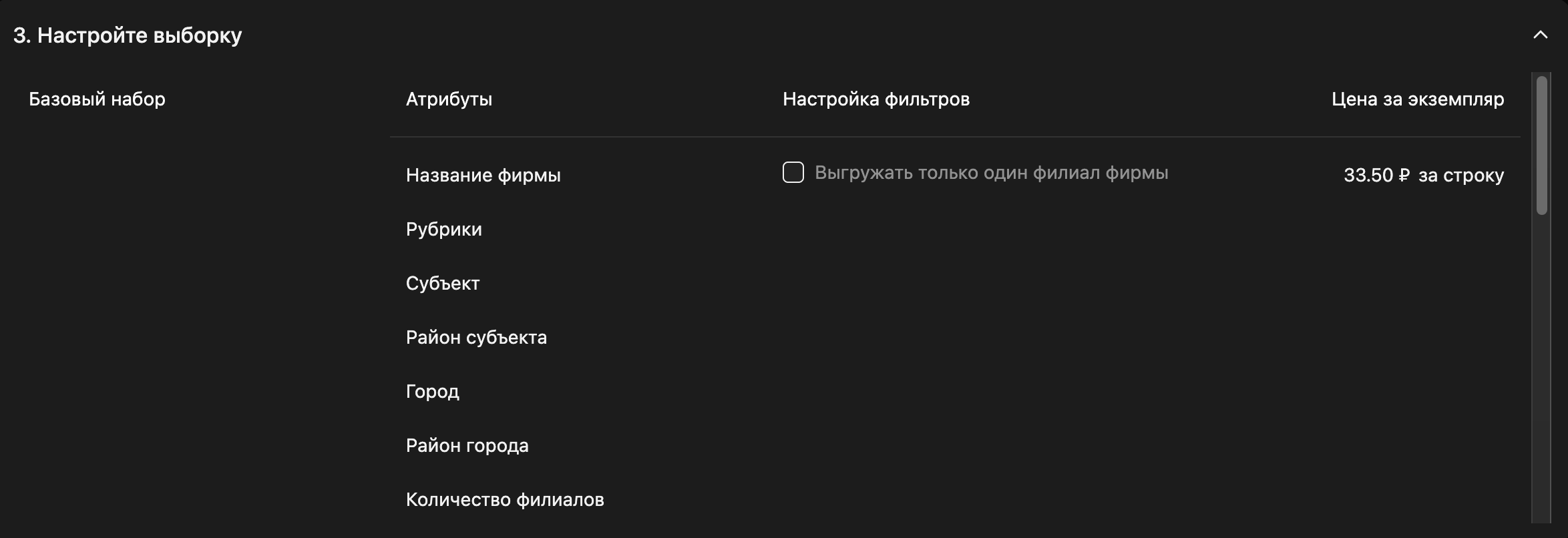
Configure the sample.
By default, the sample includes a base set of attributes (Base set block): organization name, categories, city, etc. To add additional attributes, select them in the Supplement your sample block: date added, legal name, and others. Adding attributes increases the sample price.
To include data for only one branch of each organization in the sample, select the Export only one branch per organization checkbox. To exclude empty rows without information from the sample, select the Exclude empty rows checkbox.
For more details on price calculation, see the Prices and payment instruction.
-
Read the offer terms and select the checkbox to agree.

-
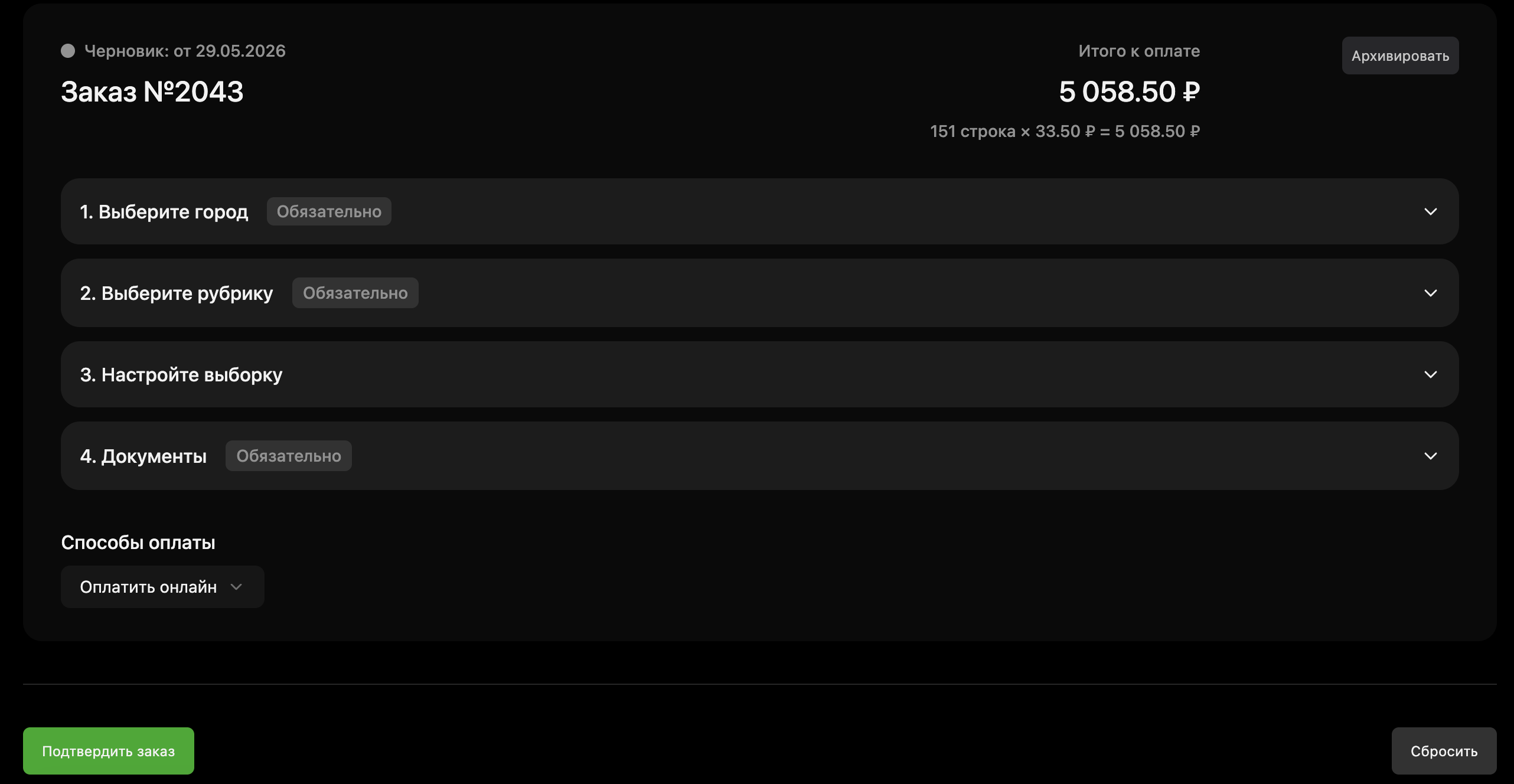
Select a payment method:
- Pay online: payment by bank card or electronic wallet.
- Invoice: payment by invoice. If you do not have saved payment details, click Add payment details and fill in the form.
-
Click Confirm order.
-
Pay for the order using the selected payment method:
- Pay online: click Pay for the order. Enter the card or electronic wallet details and confirm the payment. Temporarily, only bank cards issued in the Russian Federation are accepted.
- Invoice: download the invoice. On the Orders tab, open the order page and in the Invoice field, click
 icon. Pay for the invoice using the specified payment details.
For more details on payment methods, see the Prices and payment instruction.
To download the sample, open the order on the Orders tab and in the Sample result field, click icon.
Repeating an order
Data in the Urbi directory is regularly updated, so you can repeat an order to obtain up-to-date data. When repeating an order, all sample parameters are preserved, including selected territories, categories, and data attributes.
To obtain updated data:
- Go to the Orders tab.
- Open the order page and in the upper-right corner, click Repeat order.
Archiving an order
You can archive unpaid orders and pay for them later.
- Go to the Orders tab.
- In the order row, click
 icon and confirm archiving.
Receiving reporting documents
After creating an order, you can receive reporting documents:
- Invoice offer: contains bank details, sample price, and sample data (list of territories, data attributes, and categories).
- Service acceptance certificate: confirms the fact of service delivery and its cost.
To receive documents:
- Go to the Orders tab.
- Open the order page and in the Documents field, click icon next to the document.