Mobile application overview
The CityLens mobile application allows drivers to record data while driving a vehicle. The application is available for iOS and Android devices.
Application interface
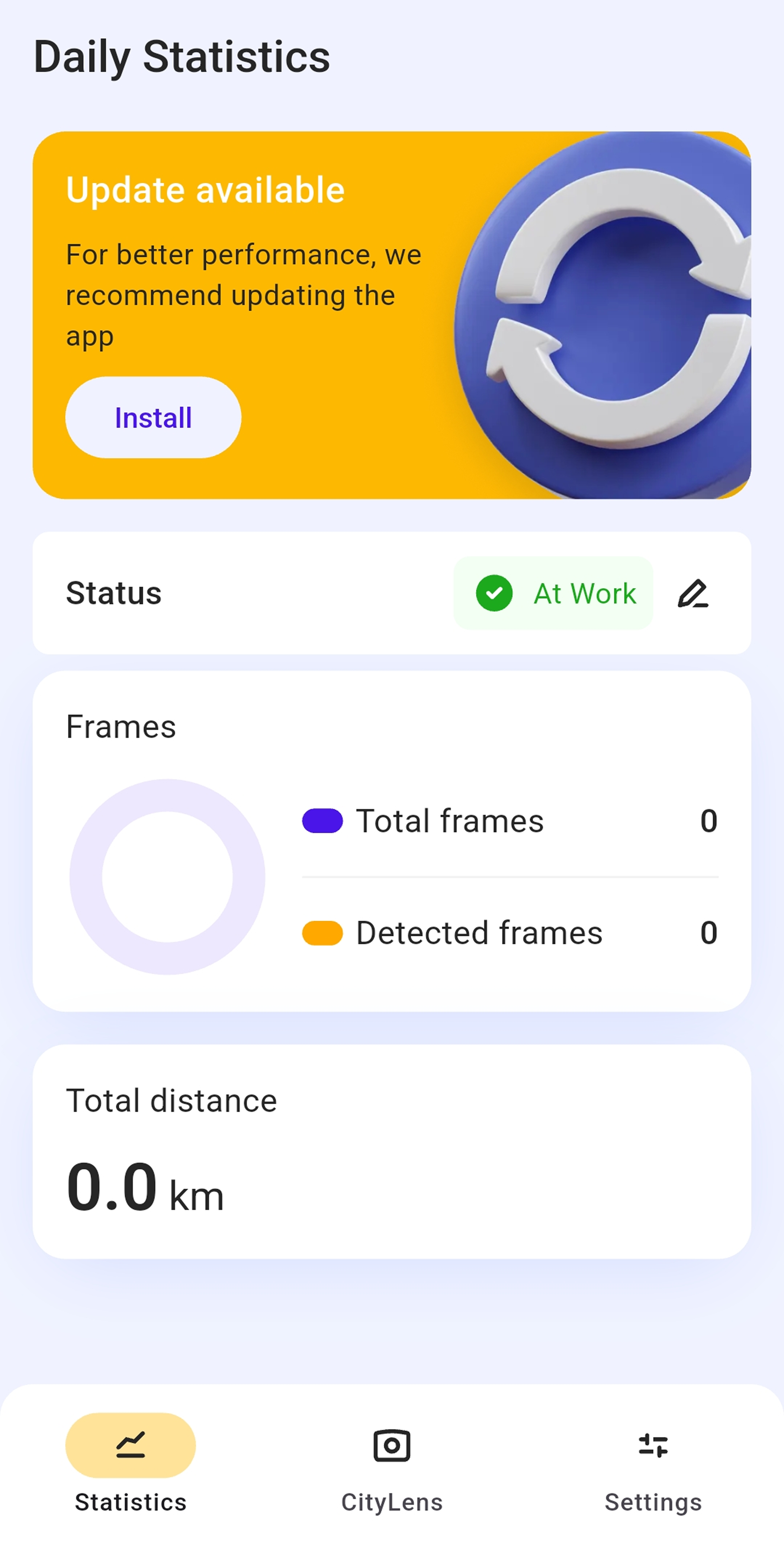
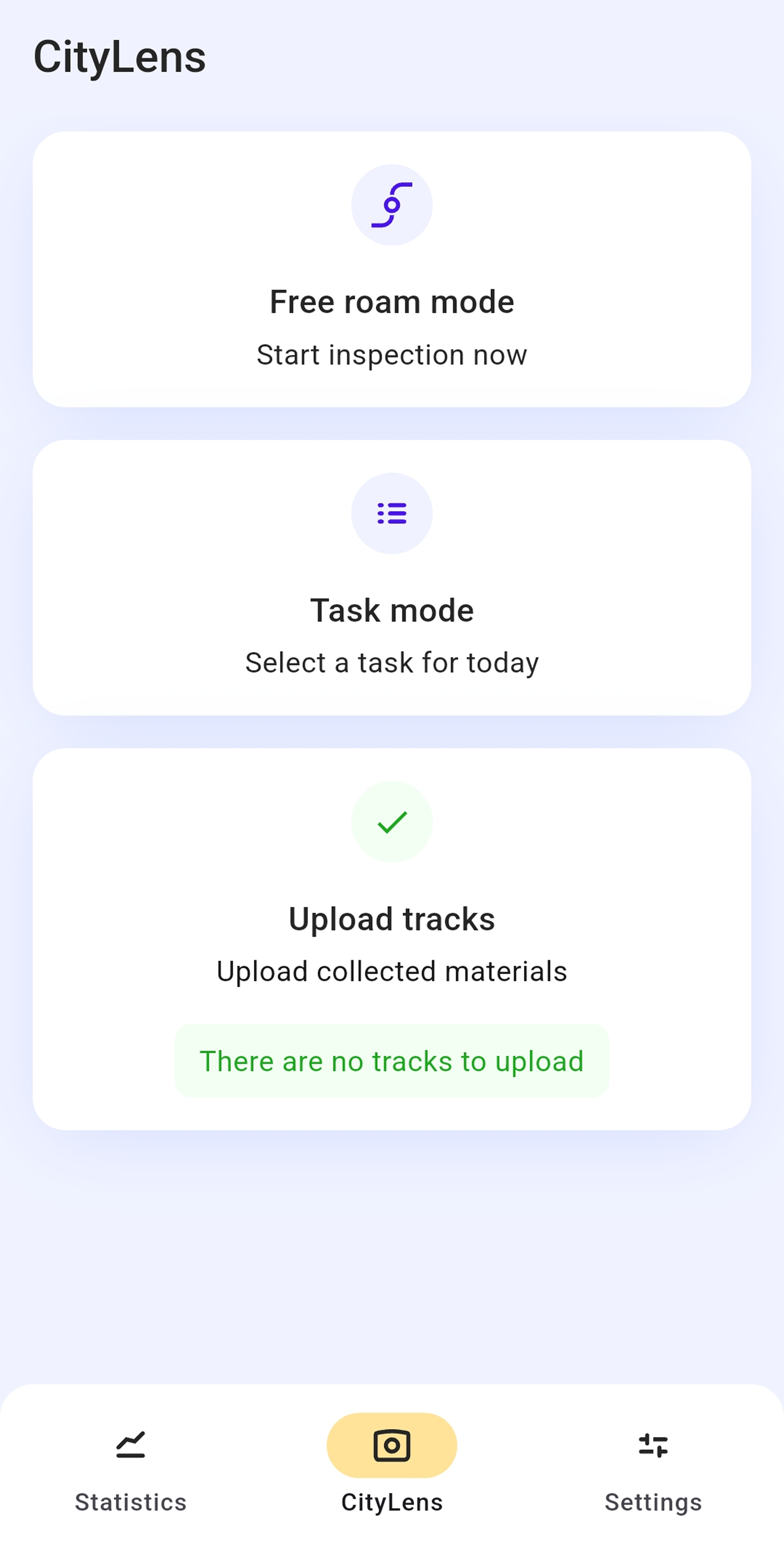
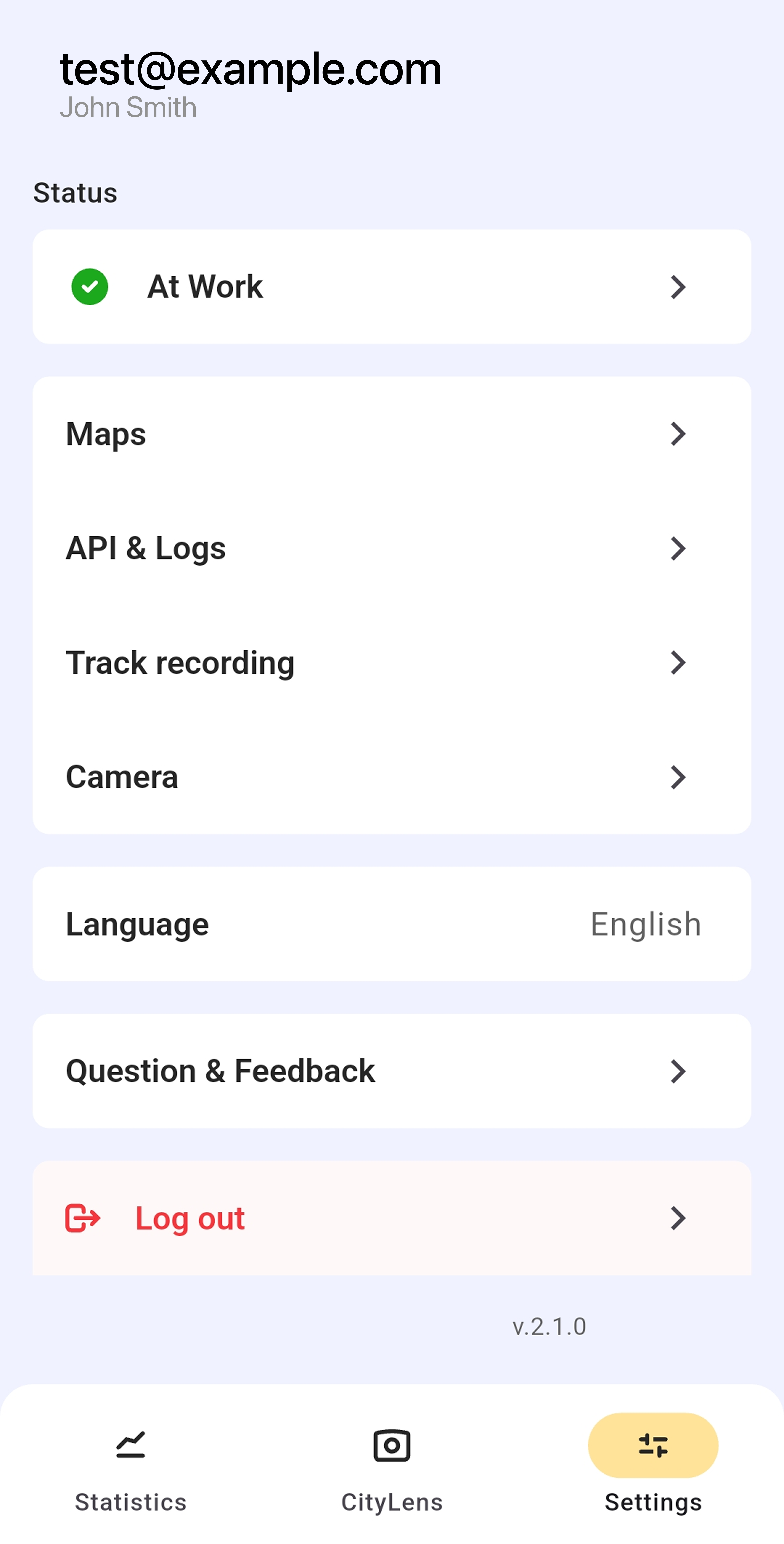
With the Driver role, you can work with the following tabs in the mobile application:
- Statistics: to see daily statistics on the traveled distance and the number of uploaded and processed frames. The data is updated after uploading tracks.
- CityLens: to record data in one of the modes or upload recorded tracks. For details, see the Recording data instruction.
- Settings: to configure recording parameters and see details of the application and account. For details, see the Settings instruction.
Updating the application
- iOS
- Android
TestFlight sends a notification when a new version of the application is released. Enable notifications for TestFlight on your device to avoid missing mandatory updates.
To install the update:
- Open the TestFlight application.
- Select the CityLens application (or Cityscan depending on the build).
- Tap Update.
New versions of the CityLens application are published in the F-Droid repository. To install the update:
- Open the F-Droid application.
- Go to the Settings → Updates section.
- Tap Update next to the CityLens application (or Cityscan depending on the build).
If a new version that your CityLens manager mentioned has not appeared in F-Droid, refresh the F-Droid cache:
- Open the F-Droid application.
- Go to the Settings → Updates section.
- Pull down the screen to refresh the cache. The new version of the application will appear in F-Droid.
If the new version of the application did not appear in F-Droid after updating the cache:
- On your device, go to the Settings → All applications section.
- Tap Clear cache for the F-Droid application.
- Add the CityLens application repository to F-Droid again and repeat the installation process: see the Installing the mobile application section.
If the issue persists, uninstall CityLens and reinstall it.
What's next?
- Review the mobile device requirements.
- Learn more about the recording requirements.
- Proceed to the getting started section.